NEED SOME HELP?

Support

Everything you need to get DeskHike set up, start a walking workout and keep your devices connected.

What you need

For the complete DeskHike experience, you will need:

  • An iPhone with the DeskHike app installed
  • A compatible Apple Watch paired with your iPhone
  • Permission for DeskHike to access the relevant Apple Health data
  • The optional DeskHike Mac app if you want to view and control your live workout from your desktop


Important:
 DeskHike works with only the iPhone app, but you won’t have your heart rate and calorie metrics. An Apple Watch is required to record a DeskHike workout and provide live heart-rate and workout data. The Mac app is optional.

How DeskHike works

DeskHike is designed for people who use a walking pad while working at a desk. Your Apple Watch provides the workout and heart-rate data, while the DeskHike apps keep your active session synchronised across your Watch, iPhone and optional Mac app.

OPTIONAL WORKOUT SENSOR
Apple Watch

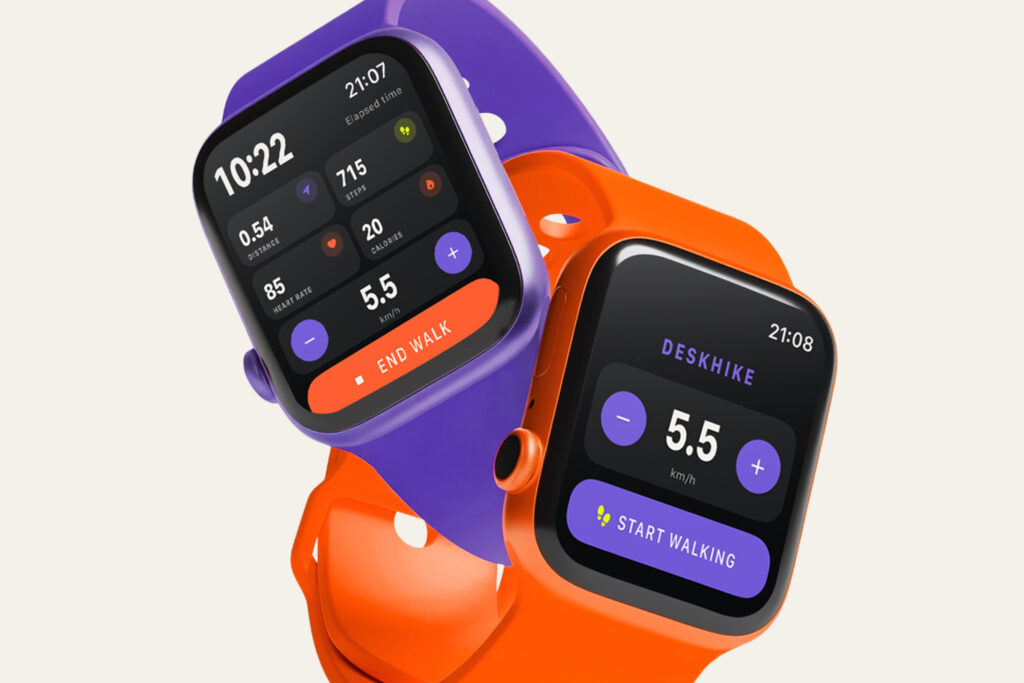
Your Apple Watch is the workout sensor. It records your heart rate and provides the Apple Health workout functionality DeskHike needs while you walk. It also allows you to view and control an active DeskHike session from your wrist.
MAIN DESKHIKE APP

iPhone

Your iPhone is the central connection point between your Apple Watch and Mac. Use it to choose your walking-pad speed, start, pause, resume and finish your DeskHike workout, and view your live workout information.

COMPANION DASHBOARD

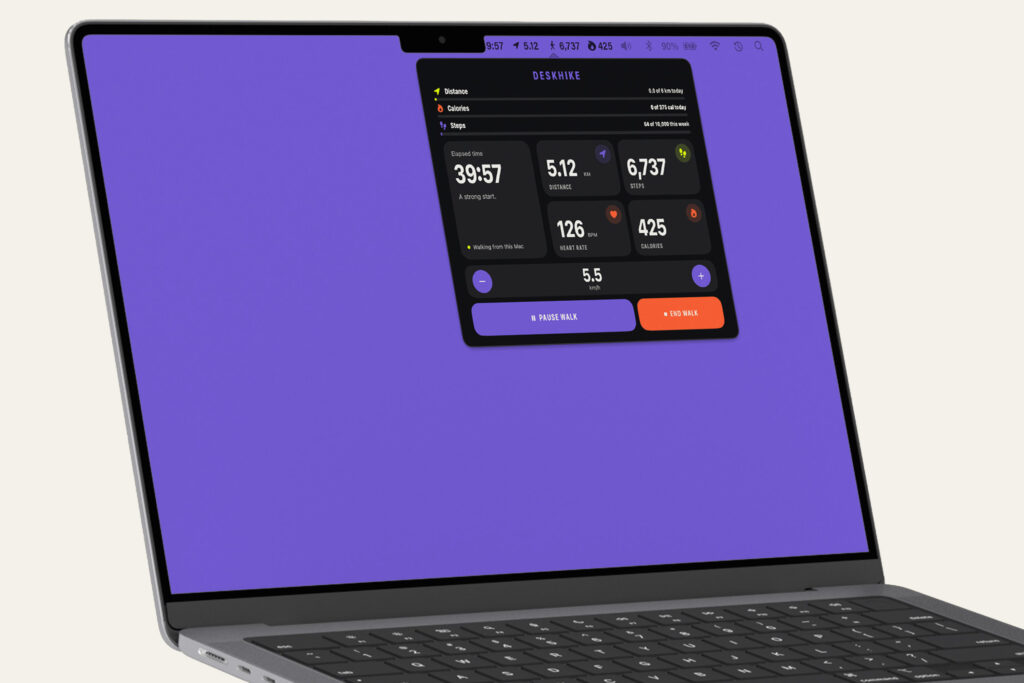
Mac

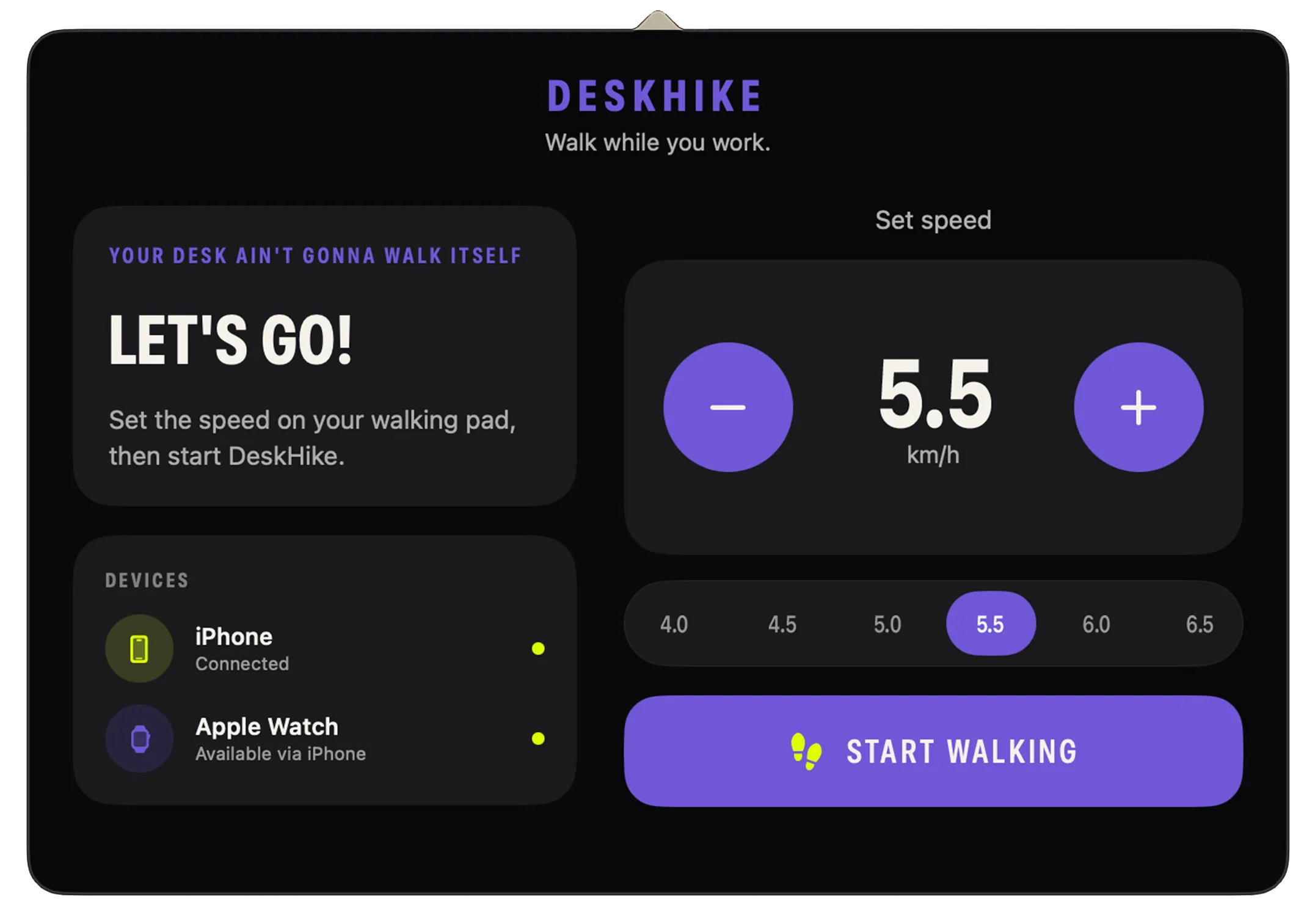
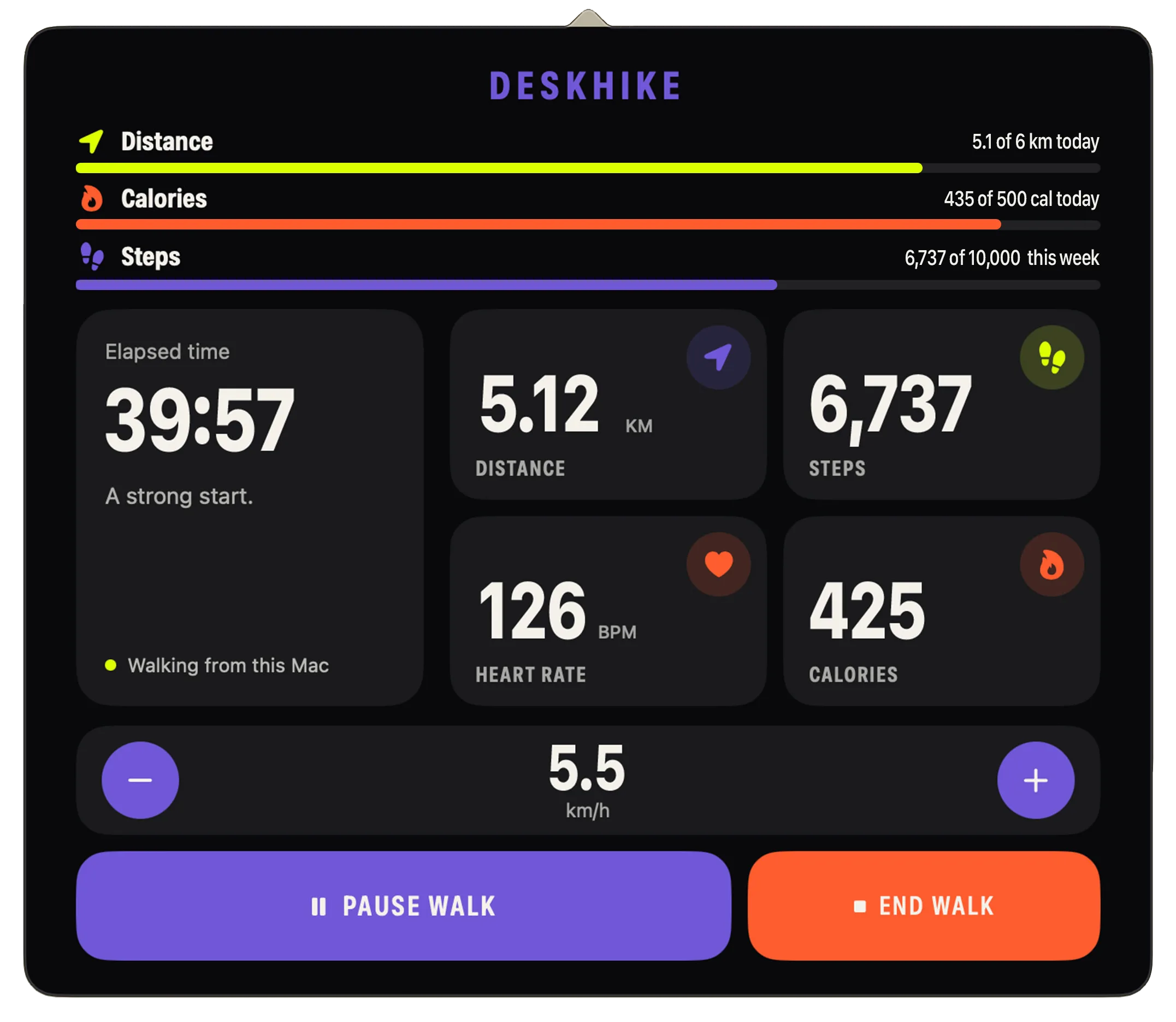
The DeskHike Mac app is an optional desktop companion. It shows your active workout information and lets you interact with the shared session from your computer, including adjusting the selected speed and using the available workout controls. This means you can keep your workout visible and manage it without repeatedly picking up your phone.

SET YOUR SPEED AND GO

How to begin a DeskHike workout

01. Put on your Apple Watch and make sure it is unlocked.


02. Confirm that Bluetooth and Wi-Fi are enabled on your iPhone and Apple Watch.


03. Open DeskHike on your iPhone.


04. Use the plus and minus controls to match the speed shown on your walking pad.


05. Tap Start Walking on any device.


06. If prompted, open or confirm DeskHike on your Apple Watch and allow the requested Health permissions.


07. Begin walking. Your heart rate, time, distance, steps and estimated active calories will update during the session.


08. Tap Pause whenever you need to temporarily stop. Your DeskHike workout timer and calculated progress will pause until you tap Resume.


09. If you want to use DeskHike from your desktop, open the Mac app. Once connected, it will join the shared session and show your live workout information and controls.


10. When you are finished, tap Finish on a connected DeskHike device and allow a moment for the final values to synchronise. You can finish a workout while it is active or paused.


Helpful tip: Set the speed in DeskHike to match your walking pad as closely as possible. DeskHike does not control the walking pad itself.

SYNC TO YOUR APPLE HEALTH

Apple Health permissions

The first time you begin a workout, Apple should ask you to allow DeskHike access to the Health information required for its workout features. Depending on your device and operating-system version, the wording or order may vary slightly.

You may be asked to allow access to:

  • Heart Rate
  • Workouts
  • Active Energy
  • Steps
  • Walking + Running Distance


Allow the permissions shown so DeskHike can start the workout and display the relevant live metrics. DeskHike only requests Health access needed for its workout experience.

If you accidentally deny a permission, you can review it later in the Health app on your iPhone:

  1. Open Health.
  2. Tap your profile picture.
  3. Tap Apps and Services.
  4. Select DeskHike.
  5. Enable the relevant permissions.


Apple may change the names or location of these settings between operating-system versions.

YOUR DASHBOARD COMPANION

What can I use without the Mac app?

The Mac app adds a convenient desktop interface for viewing and controlling the shared session. It does not replace the iPhone or Apple Watch, and it is not required to begin, pause, resume or finish a workout.

The Mac app is not required to use or evaluate DeskHike. With the iPhone and Apple Watch apps, you can:

  • Select and adjust your walking speed in 0.5 km/h increments
  • Start and finish a DeskHike workout
  • Pause and resume an active workout
  • View your live heart rate
  • View elapsed workout time
  • View speed, distance, steps and estimated active calories
  • Test the Apple Watch connection and Apple Health permissions
  • Evaluate the main DeskHike workout flow

THE MOST COMMON

Frequently asked questions

Getting started

Do I need an Apple Watch to use DeskHike?

DeskHike’s basic functionality to record your workout time, steps, pace and distance will work without an Apple Watch. An Apple Watch is required though for heart-rate monitoring and calorie calculations. It acts as the workout sensor and supplies the live Health data used during a session.

No. The Mac app is optional. You can use the primary DeskHike workout experience with an iPhone and Apple Watch, including starting, pausing, resuming and finishing a workout. The Mac app adds a convenient desktop view and access to the shared session controls while you work.

For the full three-screen experience, yes: DeskHike on iPhone, its companion app on Apple Watch, and DeskHike on Mac. For the core workout experience, only the iPhone and Apple Watch components are required.

DeskHike is currently designed around the iPhone as the main controller, with the Apple Watch providing workout data. Keep your iPhone available when starting and managing a session.

No. DeskHike does not start, stop or change the speed of your walking pad. Use the walking pad’s own controls, then set the matching speed in DeskHike.

Starting and ending workouts

How do I start a workout?

Wear and unlock your Apple Watch, open DeskHike on your iPhone, set the speed to match your walking pad, and tap Start Walking. Accept any Health permission prompts that appear. Your live workout data should begin updating once the Watch session starts.

Once your devices are connected, DeskHike’s shared-session system also allows the supported Watch, iPhone and Mac interfaces to join the same active workout. Starting from the iPhone is the simplest recommended setup flow for a first workout.

Most walking pads do not provide their live speed directly to third-party apps. Entering the speed shown on your walking pad allows DeskHike to provide a useful live workout view without requiring a particular walking-pad model or hardware connection.

Yes. When you change the speed on your walking pad, update the selected speed from a connected DeskHike interface so the app continues to reflect your session accurately. The new speed is synchronised across the shared Watch, iPhone and Mac session.

End the workout in DeskHike. Allow a moment for the Watch and iPhone to exchange the final workout values. The displayed figures should then stop changing.

Yes. Tap Pause during an active DeskHike workout whenever you need to stop temporarily. While paused, DeskHike freezes the elapsed time and its calculated distance, steps and calorie progress so your break is not counted as active walking time. Tap Resume when you are ready to continue.

Pause and resume are synchronised across the connected DeskHike experience, so the current workout state is reflected on your Watch, iPhone and Mac. You can also finish the workout while it is paused.

Yes. DeskHike is built around one shared active session. Your connected Watch, iPhone and Mac reflect the same workout state, allowing supported controls such as speed changes, pause, resume and finish to stay synchronised across the DeskHike experience.

These options may not be available in the current version of DeskHike. Availability can differ between beta builds and future releases. Health data can also be reviewed in Apple’s Health and Fitness apps, subject to Apple’s available controls.

Metrics and accuracy

What does DeskHike display during a workout?

DeskHike can display your heart rate, elapsed time, selected walking speed, estimated distance, steps and estimated active calories during a supported workout.

Heart rate comes from the Apple Watch worn on your wrist. DeskHike does not calculate heart rate from the iPhone or Mac.

It can take a short time for the Apple Watch to obtain and send its first reading. Make sure the Watch fits securely, is unlocked, is being worn correctly, and has permission to share Heart Rate data with DeskHike.

Walking pads and apps can use different sensors and calculation methods. DeskHike combines the speed you enter with data available from Apple Watch and Apple Health, so small differences in distance, steps or calories are normal.

No calorie estimate is exact. Active calories are an estimate informed by Apple Watch and Health data, including the information available in your Apple Health profile. Keep your Health details up to date for the most useful estimate.

No. DeskHike is a fitness and productivity app, not a medical device. Its information is intended for general fitness purposes and should not be used to diagnose, treat or monitor a medical condition. Seek professional medical advice if you have concerns about exercising or your heart rate.

Health permissions and privacy

Why does DeskHike need Apple Health access?

DeskHike needs the relevant Apple Health permissions to run its Watch-based workout features and display metrics such as heart rate, steps, distance and active energy.

You may see requests relating to Heart Rate, Workouts, Active Energy, Steps and Walking + Running Distance. The exact wording and presentation can vary by Apple device and operating-system version.

On your iPhone, open Health, tap your profile picture, choose Apps and Services, select DeskHike, and review the available permissions. You may then need to reopen DeskHike or begin a new workout.

No. DeskHike does not collect or sell your personal Health data. The app accesses only the Health information required to provide its workout experience. DeskHike does not operate its own account system or use your Health information for advertising.

The Mac app receives the live information needed to display and control your shared session over the local connection. You do not need a DeskHike account or cloud login for the Mac experience.

Read the DeskHike Privacy Policy here for the complete explanation of how the app handles Health information and device communication.

Connecting iPhone, Apple Watch and Mac

How do the three DeskHike components communicate?

The Apple Watch provides the workout and heart-rate information and communicates with its paired iPhone. The iPhone acts as the bridge between the Watch and the Mac app, relaying the current metrics, selected speed and workout state over the local network. Actions such as changing speed, pausing, resuming or finishing are synchronised so the connected apps continue to reflect the same shared session.

Keep your Apple Watch, iPhone and Mac nearby while using DeskHike. The Watch must be able to communicate with its paired iPhone, and the iPhone and Mac need a usable local connection for live desktop updates.

For the most reliable Mac connection, connect the iPhone and Mac to the same local Wi-Fi network and keep Bluetooth enabled. Guest, workplace or heavily restricted networks may prevent devices from discovering one another.

An internet connection may be needed to download, install or update the apps. The live connection between the iPhone and Mac is designed to operate locally, although both devices still need a compatible local network connection.

DeskHike is intended for one personal cross-device setup at a time. For the most reliable experience, keep the app open only on the Mac you want to use and control.

Troubleshooting Apple Watch

My Apple Watch is not connecting. What should I try?

Try these steps in order:

  1. Confirm the Watch is paired with the same iPhone running DeskHike.
  2. Put the Watch on, unlock it and open DeskHike on both devices.
  3. Make sure Bluetooth and Wi-Fi are enabled.
  4. Confirm that DeskHike is installed on the Watch.
  5. Review DeskHike’s Health permissions.
  6. Close and reopen DeskHike on the Watch and iPhone.
  7. If necessary, restart both devices and try a new workout.

Open the Watch app on your iPhone, scroll to the available apps, find DeskHike and tap Install. If it is already listed as installed, open the app directly from your Watch.

This usually means the iPhone cannot currently detect the Watch companion app. Confirm DeskHike is installed on the paired Watch, then open it on both devices. If the message remains, restart the apps or reinstall the Watch component from the Watch app on your iPhone.

Check that DeskHike has started a workout on the Watch, that the Watch is being worn and unlocked, and that the required Health permissions are enabled. Keep both apps open briefly while the initial data arrives. If the values remain frozen, end the session, reopen both apps and start a fresh workout.

Troubleshooting Mac

My Mac app is not showing my workout. What should I check?

Confirm that:

  • A DeskHike workout is active on the iPhone and Apple Watch
  • DeskHike is open on the Mac
  • The iPhone and Mac are on the same local Wi-Fi network
  • Bluetooth and Wi-Fi are enabled
  • DeskHike has permission to access the local network if prompted
  • A VPN, firewall, guest network or workplace network is not blocking local device discovery


Then close and reopen DeskHike on the Mac. If needed, restart DeskHike on the iPhone as well.

The Mac app joins the shared DeskHike session. It may show zeroes or a waiting state until a workout begins and the first metrics arrive from the iPhone.

The local connection may have been interrupted if a device slept, changed networks or temporarily lost Wi-Fi. Wake the devices, confirm they remain on the same network, and reopen DeskHike on the Mac. Your workout can continue on the Watch and iPhone even if the Mac display temporarily disconnects.

Yes. The Mac app is optional. Your core workout continues through the Apple Watch and iPhone even if the desktop interface temporarily disconnects. Once the connection returns, the Mac app should rejoin the current shared session.

Some networks isolate each connected device or block local discovery. If that happens, try a trusted private Wi-Fi network where your iPhone and Mac are permitted to communicate with each other.

Beta testing and updates

I am using a beta version. Should I expect occasional issues?

Yes. Beta testing helps identify connection problems, confusing steps and unexpected behaviour before public release. If something does not work, note which devices you were using, what you expected to happen and what appeared instead.

Open TestFlight on each supported device and install the latest available DeskHike build. Keeping the iPhone, Watch and Mac components current helps avoid version-related connection problems.

Not necessarily. Some features may be introduced, changed or temporarily unavailable while DeskHike is being tested. The build notes in TestFlight will describe important changes and known limitations.

Send your feedback through TestFlight or contact DeskHike Support. Please include:

  • Your iPhone, Apple Watch and Mac models
  • The operating-system version on each device
  • The DeskHike build number
  • Which screen you were on
  • What you expected to happen
  • What happened instead
  • A screenshot or screen recording, if helpful


Please do not include private Health information you do not want to share.

DeskHike app icon

Still need help?

CONTACT DESKHIKE SUPPORT

Email support@deskhike.com and include a brief description of the issue, the devices you are using and the DeskHike version or TestFlight build number. Screenshots are welcome when they help show the problem.

Contact Support